The artwork file is one of the most useful things to get right before creating a custom T-shirt. A clear original, a deliberate background and a readable design give you a better starting point when you move from an idea to a garment.
In MB POD Studio, you can upload an image, resize it, position it on a tee and review the front and back. Preparing that image first makes the design process easier, especially when your order includes several colors or sizes.
This guide explains how to prepare artwork for T-shirt printing using the formats and controls currently available in the Minimal Basics studio.
Start With Your Best Original File
Open the original version of your artwork in the application where you created it. Inspect the edges of the design, the spacing around letters and any fine details you want to preserve.
A screenshot or an image saved from a message thread may have less detail than your original export. Keep the original project and create an upload copy from it. That also makes future changes easier: you can revise a word or a shape without rebuilding the whole design.
Use artwork you created or have permission to use. Keep any source files and permissions organized with the project so you can find the approved version later.
Choose A Supported Upload Format
The current MB POD Studio supports the following image formats:
| Format | A Useful Starting Point For |
|---|---|
| PNG | Logos, illustrations and artwork with a transparent background |
| JPG | Photographs or artwork with an intentional solid background |
| WebP | A supported image export when its appearance and transparency are correct |
Each upload must be a valid image of 10 MB or less. The studio also checks image dimensions, with a maximum of 12,000 pixels on either side and 60 megapixels overall.
Those limits describe what the uploader can accept. Review the image itself for the detail your design needs. When working from another file format, export a supported image rather than changing the filename extension.
Decide Whether The Background Belongs In The Design
A logo can look very different with a rectangle behind it. Before exporting, decide whether the garment should show around the artwork or whether a background is part of the composition.
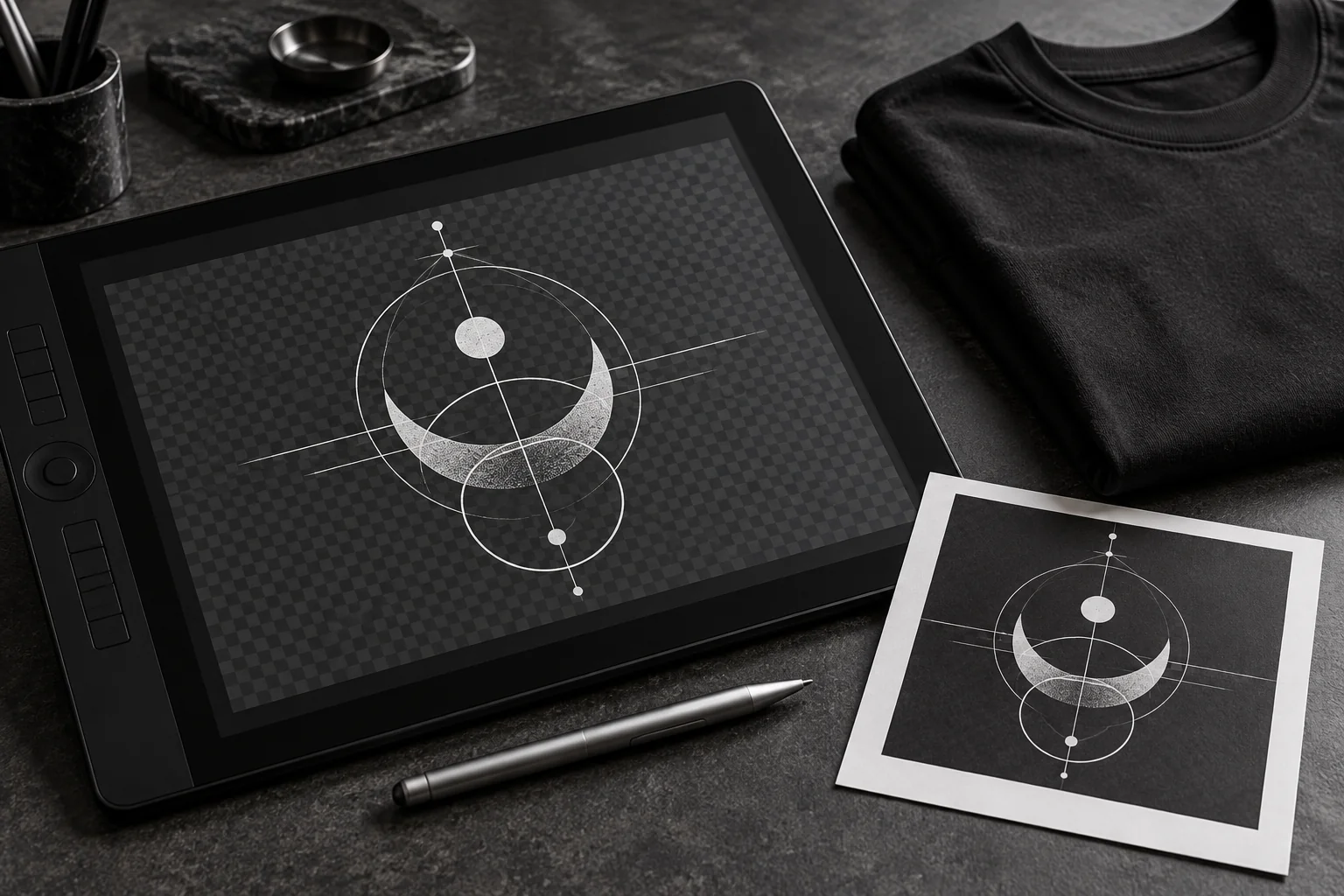
For a design with open space around its shapes, a transparent PNG is often a practical choice. Check the exported file against both light and dark backgrounds. This can reveal a pale edge, a stray pixel or an area you thought was transparent.
If the background is intentional, keep it. A framed photograph or a solid graphic panel can work well when its edges and proportions are deliberate. The useful check is whether the finished file matches the look you want on the tee.
Think About Pixel Dimensions And Print Size Together
Image dimensions tell you how many pixels are available. A resolution figure describes how those pixels relate to a physical size.
For example, planning a 10-inch-wide image at 300 pixels per inch requires 3,000 pixels across: 10 multiplied by 300. That is planning math; confirm the actual printable area and production requirements with Minimal Basics before finalizing a design around a particular measurement.
Changing a resolution setting while retaining the same pixel dimensions does not create extra image detail. Keep a clear original and review the artwork at the size you expect to use. Adobe’s print-resolution guide explains the relationship between image resolution and print quality.
Check Contrast On Each Garment Color
In the studio, preview your artwork on the actual color you selected. A dark mark may need a lighter treatment on a black tee, while a pale design may lose definition against a light garment.
Check the main shape first, then the smaller details. Ask whether the name, symbol or message is still clear when you look at the entire shirt instead of zooming into the artwork.
If you are using several garment colors, prepare the versions you need before uploading. Clear names such as circle-mark-light-front.png and circle-mark-dark-front.png help you identify the right file for each selection.
Review Front And Back As Separate Placements
Upload the front and back files to their corresponding locations. Use the resize and alignment controls to refine the placement, then switch views and inspect both sides again.
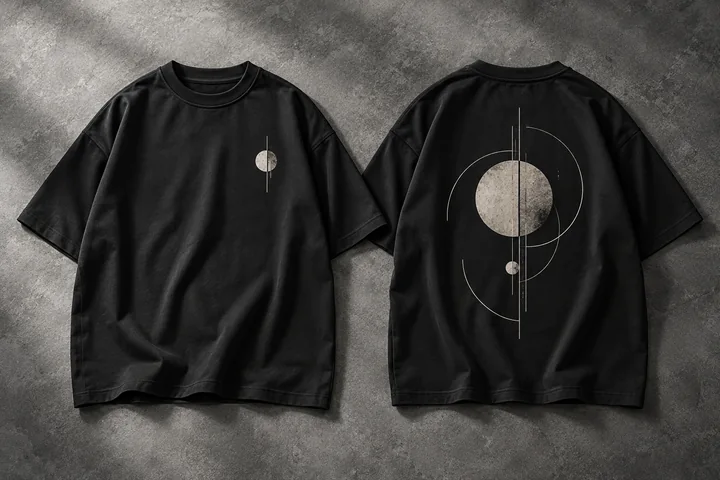
For a consistent collection, decide which design element leads. A small front mark and a larger back illustration can share one visual language without repeating the same composition at the same scale.
The selection queue keeps your color, size and quantity choices together. When you apply artwork across selections, revisit every color afterward. Check that the intended image is on the intended side and that the design is readable against the fabric.
Keep A Simple Final-File Routine
Before submitting, check the spelling, orientation and artwork version. Remove any unwanted background from the source file, export again if needed and confirm the new version in the preview.
Keep a copy of the approved originals outside the browser. The website saves your original artwork privately with a submitted order request, while retaining your own source files makes future revisions easier.
For a collection or a design where exact appearance matters, confirm a physical sample and production details with Minimal Basics. The on-screen mockup helps you plan the layout; the sample lets you inspect the garment and print together.
Open MB POD Studio when your file is ready. For the full color-to-review workflow, read the custom oversized T-shirt studio guide. The current website accepts unpaid order requests, so confirm payment and production arrangements before expecting dispatch.
Artwork Preparation Questions
Can I Upload A PDF Or SVG?
Export your design as a PNG, JPG or WebP before uploading. Those are the image formats currently supported by the studio.
Can I Use A Different File On The Back?
Yes. Front and back placements can keep separate artwork. Review the correct side before uploading or replacing a file.
Does A Large File Automatically Mean A Better Print?
File size, image detail and the intended output size need to be assessed together. Start with a clear original and confirm production requirements when preparing a specific physical print size.