A custom oversized T-shirt should feel like something you would choose to wear before a graphic ever touches it. The shape, color and proportions set the foundation. Your artwork gives it a point of view.
Minimal Basics brings those decisions together in MB POD Studio, an online print-on-demand workspace for creating custom clothing. Start with the Oversized Classic T-Shirt, choose a color and size, and place your own artwork on the front, back or both. The live preview helps you see the relationship between your design and the garment as you work.
Whether you are making a personal piece, creator merchandise or an early clothing-brand sample, here is how to build a design that feels considered from the first step.
Start With The Oversized Fit You Want To Wear
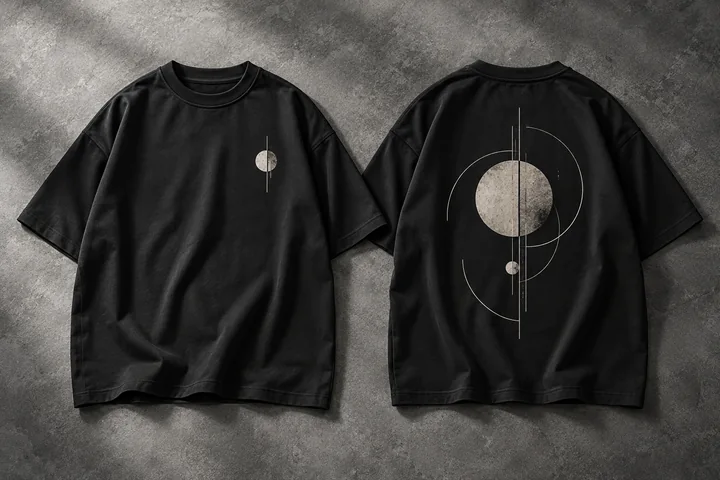
An oversized silhouette changes how a graphic sits on the body. A small chest mark can feel understated on a roomy tee, while a larger back design can become the main feature of the outfit.
MB POD Studio currently starts with a 240 GSM unisex oversized T-shirt, available in 19 colors and sizes XS–XXL. The shirt is based on the Oversized Classic in the Minimal Basics Essential T-Shirts collection.
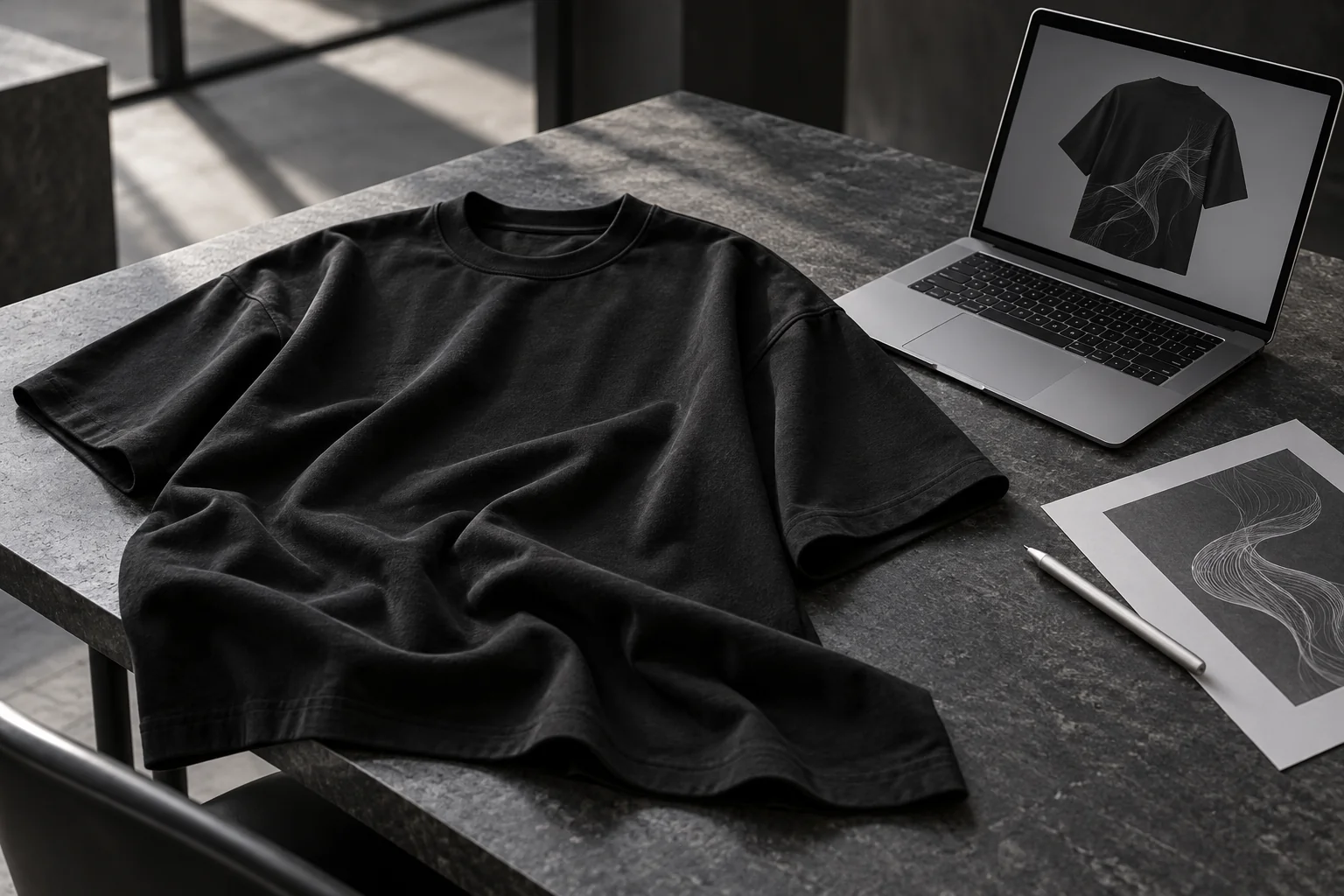
Think about the finished outfit before choosing a color. Black can create a strong foundation for light artwork. White gives dark lettering a clear setting. A tonal combination can make a design feel quieter and more integrated with the garment.
The useful question is simple: would this shirt still fit your style on an ordinary day?
Step 1: Choose Your Color, Size And Quantity
Open the product in MB POD Studio and select your first color. Then choose a size and quantity.
The Size chart button opens a fit guide inside the studio. Switch between inches and centimeters, compare the measurements with a T-shirt you already like, and close the popup to continue. Your selection stays in place.
For a multi-item request, use Add color / size to create another selection. You could prepare two black tees in medium and one white tee in extra large in the same workflow. Each selection has its own quantity, and the queue keeps your choices visible.
The current limit is 30 products per order, including products already in your bag. For a sample or personal project, you can begin with a single tee.
Step 2: Upload Artwork And Choose The Print Placement
Move to Artwork & placement and upload the design you want to use. The studio accepts PNG, JPG and WebP images up to 10 MB. Start with a clear original file and inspect the edges and lettering before uploading.
A transparent PNG can be useful when you want the garment color to show around an illustration or logo. If you upload an image with a solid background, check whether that rectangle is part of the look you intend.
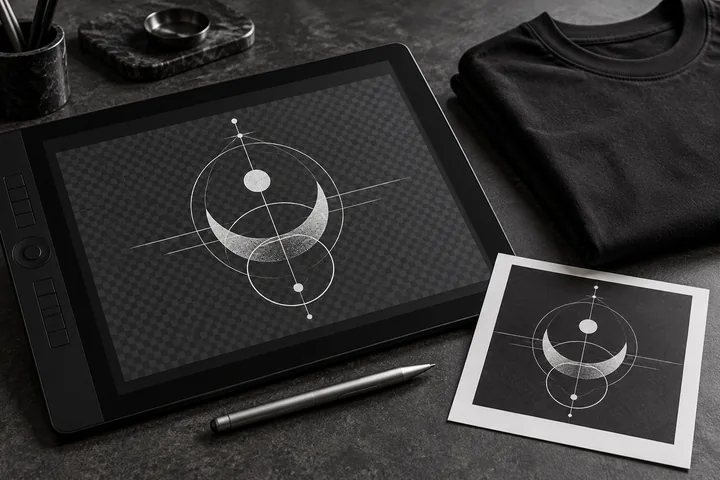
Use the front and back views to develop a simple visual hierarchy. For example:
- A small front logo with a larger illustration on the back.
- A single front graphic that carries the entire design.
- Matching front-and-back typography with different levels of emphasis.
You can resize the artwork, drag it into position, or use the center, top and bottom alignment controls. Look at the whole shirt between adjustments. A design that fills the preview may feel very different from a smaller placement with more space around it.
The mockup is a visual design guide. A physical sample is the useful next step for judging the finished print and fit together.
Keep Different Designs Organized In The Selection Queue
You can switch between the color-and-size selections in your queue while developing the artwork. This makes it easier to give a black tee one treatment and a white tee another.
If the same design belongs across the selection, use the apply-to-all option for the relevant placement. Then revisit each color to check contrast and positioning. A dark logo that works on white may need a lighter version for black.
Before moving to review, inspect both sides of every selection. Check the spelling, artwork orientation, quantity and placement rather than relying on the first preview alone.
Step 3: Review The Complete Custom-Shirt Request
The final step brings the product selections, delivery information and pricing together. At the current listed rates, a blank tee is $15 and a tee with artwork is $25. Front, back or both use the same $25 designed-product price.
Standard POD shipping is listed at $7.95 for the first product and $4.95 for each additional product in the order. Rush options appear in the review. Check the current total and delivery option before submitting, especially for a date-sensitive project.
If you are sending a product directly to your customer, choose the direct-to-customer option and review their details carefully. The workflow records your unbranded-packaging preference and any optional package-price instruction.
The website currently accepts unpaid order requests. Submitting a request saves the order details and original artwork without collecting an online payment. Confirm payment and production arrangements with Minimal Basics before treating the request as a scheduled shipment.
Make Your First Design Easy To Evaluate
Start with one main graphic, a deliberate placement and a color combination you can read clearly. Review the shirt at a smaller scale as well as in the large preview. If the artwork depends on tiny details, examine those details in your source file.
For a personal tee, make something you will reach for repeatedly. For a collection sample, choose a design that represents the identity you want future pieces to share.
Open MB POD Studio and create your oversized tee.
Custom Oversized T-Shirt Questions
Can I Print The Front And Back Of The Same Tee?
Yes. Upload and position artwork for each side. Under the current studio pricing, a designed tee is $25 whether you choose the front, back or both; shipping is additional.
Can Different Colors Use Different Artwork?
Yes. Use the selection queue to review and customize each color-and-size selection. The apply-to-all option is available when you want to reuse a design across selections.
Do I Have To Leave The Studio To Check The Size Chart?
No. The Step 1 Size chart opens as an in-studio popup with inches and centimeters. Closing it keeps your product selections intact.